Session 2: SSCM DataSHIELD tutorial
- Former user (Deleted)
- Former user (Deleted)
Note: Prerequisites
This tutorial assumes you have already installed the DataSHIELD test environment . Install takes around half an hour.
It is recommended that you familiarise yourself with R first by sitting our Session 1: Introduction to R tutorial
Tip: DataSHIELD support
DataSHIELD users can request subscription to the DataSHIELD forum using your university email address to:
- post questions on using DataSHEILD
- stay informed about package changes
- report to us any error you may encounter
All other DataSHIELD general enquiries should go to datashield-research@bristol.ac.uk
Introduction
This tutorial introduces users R/RStudio users to DataSHIELD commands and syntax. Throughout this document we refer to R, but all commands are run in the same way in Rstudio. This tutorial contains a limited number of examples; further examples are available in each DataSHIELD function manual page that can be accessed via the help function.
The DataSHIELD approach: aggregate and assign functions
DataSHIELD commands call functions that range from carrying out pre-requisite tasks such as login to the data providers, to generating basic descriptive statistics, plots and tabulations. More advance functions allow for users to fit generalized linear models and generalized estimating equations models. R can list all functions available in DataSHIELD.
This section explains the functions we will call during this tutorial. Although this knowledge is not required to run DataSHIELD analyses it helps to understand the output of the commands. It can explain why some commands call functions that return nothing to the user, but rather store the output on the server of the data provider for use in a second function.
In DataSHIELD the person running an analysis (the client) uses
client-side functions
to issue commands (instructions). These commands initiate the execution (running) of
server-side functions
that run the analysis server-side (behind the firewall of the data provider). There are two types of server-side function:
assign functions
and
aggregate functions
.
Information: How assign and aggregate functions work
Assign functions do not return an output to the client, with the exception of error or status messages. Assign functions create new objects and store them server-side either because the objects are potentially disclosive, or because they consist of the individual-level data which, in DataSHIELD, is never seen by the analyst. These new objects can include:
- new transformed variables (e.g. mean centred or log transformed variables)
- a new variable of a modified class (e.g. a variable of class numeric may be converted into a factor which R can then model as having discrete categorical levels)
- a subset object (e.g. a table may be split into males and females).
Assign functions return no output to the client except to indicate an error or useful messages about the object store on
server-side.
Aggregate functions analyse the data server-side and return an output in the form of aggregate data (summary statistics that are not disclosive) to the client. The help page for each function tells us what is returned and when not to expect an output on client-side.
Getting ready
Import the Opal Servers
- Open 'My Computer' and go to the C: drive and go into the folder called 'DATASHIELD SHORT COURSE'.
- There are three Opal servers in this folder. Double-click to import them one at a time into VirtualBox (this may be a little slow).
- In the VirtualBox interface, click on 'Snapshots' in the top right. Press the camera icon to take a snapshot of the Opal server. Repeat this for each Opal server.
Start the Opal Servers
- Open VirtualBox. Left click on an Opal test server and select the green
Startarrow (or double click on the Opal test server name). - The Opal test servers take a few minutes to boot. Leave them running for a few minutes to ensure Opal has started. You do not need to login.
Tip: Check opal servers are working
You can check whether the Opal test servers are ready by typing the following into your navigation bar
http://192.168.56.100:8080 and http://192.168.56.101:8080
or
Start R/RStudio and load packages
- Start R (or RStudio, if using).
- In the DATASHIELD SHORT COURSE folder on your C: drive, there is a script called 'install-datashield-client-windows.R'. This contains a series of R commands that will install DataSHIELD on your computer, and allow you to connect to the Opal servers in order to perform some analyses.
- Using what you have learned in the previous R session; run the script and install the DataSHIELD client packages.
- Check for DataSHIELD package updates
- The following relevant R packages are required for analysis
opalto login and logoutdsBaseClient,dsStatsClient,ds.GraphicsClientanddsModellingClientcontaining all DataSHIELD functions referred to in this tutorial.
- To load the R packages, type the
libraryfunction into the command line as given in the example below:
#update dataSHIELD packages
update.packages(repos='http://cran.obiba.org')

#load libraries
library(opal)
library(dsBaseClient)
library(dsStatsClient)
library(dsGraphicsClient)
library(dsModellingClient)
The output in R/RStudio will look as follows:
library(opal)
#Loading required package: RCurl
#Loading required package: bitops
#Loading required package: rjson
library(dsBaseClient)
#Loading required package: fields
#Loading required package: spam
#Loading required package: grid
library(dsStatsClient)
library(dsGraphicsClient)
library(dsModellingClient)
Note: error messages installing packages
You might see the following status message that you can ignore. The message refers to the blocking of functions within the package.
The following objects are masked from ‘package:xxxx’
Login template
A Horizontal-DataSHIELD process starts with a login to one or more Opal servers that hold the data behind the data provider firewall. Formatting of the login details is required to log into Opal servers:
- Login details are held in a data frame (table). The example below shows the format of the login data frame for DataSHIELD test environment which consists of two datasets held by two Opal servers. This login file
logindatais built into the DataSHIELD test environment.
- The DataSHIELD test environment login details are loaded using the
datafunction. Callinglogindataallows users to view the login data on the screen:
data(logindata)
logindata

# server url                 user          password table
# study1 192.168.56.100:8080 administrator password CNSIM.CNSIM
# study2 192.168.56.101:8080 administrator password CNSIM.CNSIM
Note: data access
If you are not using your own data, information for the login table is obtained from the data provider. Please follow the appropriate procedures to gain clearance to analyse their data.
Log in to the remote servers
Note: loading login details
Your login details must be loaded via the data() function or read into the R session first.
- Create a variable called
opalsthat calls thedatashield.loginfunction to log into the desired Opal servers. In the DataSHIELD test environmentlogindatais our login template for the test Opal servers.
opals <- datashield.login(logins=logindata,assign=TRUE)
- The output below indicates that each of the two test Opal servers
study1andstudy2contain the same 11 variables listed in capital letters underVariables assigned:.
> opals <- datashield.login(logins=logindata,assign=TRUE)
Logging into the collaborating servers

  No variables have been specified.
  All the variables in the opal table
  (the whole dataset) will be assigned to R!

Assigining data:
study1...
study2...

Variables assigned:
study1--LAB_TSC, LAB_TRIG, LAB_HDL, LAB_GLUC_ADJUSTED, PM_BMI_CONTINUOUS, DIS_CVA, MEDI_LPD, DIS_DIAB, DIS_AMI, GENDER, PM_BMI_CATEGORICAL
study2--LAB_TSC, LAB_TRIG, LAB_HDL, LAB_GLUC_ADJUSTED, PM_BMI_CONTINUOUS, DIS_CVA, MEDI_LPD, DIS_DIAB, DIS_AMI, GENDER, PM_BMI_CATEGORICAL
Note: data harmonisation
In Horizontal DataSHIELD pooled analysis the data are harmonized and the variables given the same names across the studies, as agreed by all data providers.
Information: How datashield.login works
The datashield.login function from the R package opal allows users to login and assign data to analyse from the Opal server in a server-side R session created behind the firewall of the data provider.
All the commands sent after login are processed within the server-side R instance only allows a specific set of commands to run (see the details of a typical horizontal DataSHIELD process). The server-side R session is wiped after loging out.
If we do not specify individual variables to assign to the server-side R session, all variables held in the Opal servers are assigned. Assigned data are kept in a data frame named D by default. Each column of that data frame represents one variable and the rows are the individual records.
Assign individual variables on login
Users can specify individual variables to assign to the server-side R session. It is best practice to first create a list of the Opal variables you want to analyse as then not all variables are held in the R session.
- The example below creates a new variable
myvarthat lists the Opal variables required for analysis:LAB_HDLandGENDER - The
variablesargument in the functiondatashield.loginusesmyvar, which then will call only this list.
myvar <- list('LAB_HDL', 'GENDER')
opals <- datashield.login(logins=logindata,assign=TRUE,variables=myvar)

#Logging into the collaborating servers

#Assigining data:
#study1...
#study2...

#Variables assigned:
#study1--LAB_HDL, GENDER
#study2--LAB_HDL, GENDER
Information: The format of assigned data frames
Assigned data are kept in a data frame (table) named D by default. Each row of the data frame are the individual records and each column is a separate variable.
Basic statistics and data manipulations
Descriptive statistics: variable dimensions and class
Tip: Split and combine
Almost all functions in DataSHIELD can display split results (results separated for each study) or pooled results (results for all the studies combined). This can be done using the type='split' and type='combined' argument in each function. The majority of DataSHIELD functions have a default of type='combined'. The default for each function can be checked in the function help page.
It is possible to get some descriptive or exploratory statistics about the assigned variables held in the server-side R session such as number of participants at each data provider, number of participants across all data providers and number of variables. Identifying parameters of the data will facilitate your analysis.
- The dimensions of the assigned data frame
Dcan be found using theds.dimcommand in whichtype='split'is the default argument:
opals <- datashield.login(logins=logindata,assign=TRUE)
ds.dim(x='D')
The output of the command is shown below. It shows that in study1 there are 2163 individuals with 11 variables and in study2 there are 3088 individuals with 11 variables:
> opals <- datashield.login(logins=logindata,assign=TRUE)
Logging into the collaborating servers
  No variables have been specified.
  All the variables in the opal table
  (the whole dataset) will be assigned to R!
Assigning data:
study1...
study2...
Variables assigned:
study1--LAB_TSC, LAB_TRIG, LAB_HDL, LAB_GLUC_ADJUSTED, PM_BMI_CONTINUOUS, DIS_CVA, MEDI_LPD, DIS_DIAB, DIS_AMI, GENDER, PM_BMI_CATEGORICAL
study2--LAB_TSC, LAB_TRIG, LAB_HDL, LAB_GLUC_ADJUSTED, PM_BMI_CONTINUOUS, DIS_CVA, MEDI_LPD, DIS_DIAB, DIS_AMI, GENDER, PM_BMI_CATEGORICAL


> ds.dim(x='D')
$study1
[1] 2163   11

$study2
[1] 3088   11
- Use the
type='combine'argument in theds.dimfunction to identify the number of individuals (5251) and variables (11) pooled across all studies:
ds.dim('D', type='combine')
#$pooled.dimension
#[1] 5251   11
- To check the variables in each study are identical (as is required for pooled data analysis), use the
ds.colnamesfunction on the assigned data frameD:
ds.colnames(x='D')
#$study1
# [1] "LAB_TSC"            "LAB_TRIG"           "LAB_HDL"            "LAB_GLUC_ADJUSTED"  "PM_BMI_CONTINUOUS"  "DIS_CVA"
# [7] "MEDI_LPD"           "DIS_DIAB"           "DIS_AMI"            "GENDER"             "PM_BMI_CATEGORICAL"

#$study2
# [1] "LAB_TSC"            "LAB_TRIG"           "LAB_HDL"            "LAB_GLUC_ADJUSTED"  "PM_BMI_CONTINUOUS"  "DIS_CVA"
# [7] "MEDI_LPD"           "DIS_DIAB"           "DIS_AMI"            "GENDER"             "PM_BMI_CATEGORICAL"
- Use the
ds.classfunction to identify the class (type) of a variable - for example if it is an integer, character, factor etc. This will determine what analysis you can run using this variable class. The example below defines the class of the variable LAB_HDL held in the assigned data frame D, denoted by the argumentx='D$LAB_HDL'
ds.class(x='D$LAB_HDL')
#$study1
#[1] "numeric"

#$study2
#[1] "numeric"
Descriptive statistics: quantiles and mean
As LAB_HDL is a numeric variable the distribution of the data can be explored.
- The function
ds.quantileMeanreturns the quantiles and the statistical mean. It does not return minimum and maximum values as these values are potentially disclosive (e.g. the presence of an outlier). By defaulttype='combined'in this function - the results reflect the quantiles and mean pooled for all studies. Specifying the argumenttype='split'will give the quantiles and mean for each study:
ds.quantileMean(x='D$LAB_HDL')
# Quantiles of the pooled data
#       5%      10%      25%      50%      75%      90%      95%     Mean
# 1.042161 1.257601 1.570058 1.901810 2.230529 2.521782 2.687495 1.561957
- To get the statistical mean alone, use the function
ds.meanuse the argumenttypeto request split results:
ds.mean(x='D$LAB_HDL')
#$`Global mean`
#[1] 1.561957
Descriptive statistics: assigning variables
So far all the functions in this section have returned something to the screen. Some functions (assign functions) create new objects in the server-side R session that are required for analysis but do not return an anything to the client screen. For example, in analysis the log values of a variable may be required.
- By default the function
ds.logcomputes the natural logarithm. It is possible to compute a different logarithm by setting the argumentbaseto a different value. There is no output to screen:
ds.log(x='D$LAB_HDL')
- In the above example the name of the new object was not specified. By default the name of the new variable is set to the input vector followed by the suffix '_log' (i.e.
'LAB_HDL_log')
- It is possible to customise the name of the new object by using the
newobjargument:
ds.log(x='D$LAB_HDL', newobj='log_lab_hdl')
- The new object is not attached to assigned variables data frame (default name
D). We can check the size of the new LAB_HDL_log vector we generated above; the command should return the same figure as the number of rows in the data frame 'D'.
ds.length (x='LAB_HDL_log')
#$total.number.of.observations
#[1] 5251
ds.length(x='D$LAB_HDL')
#$total.number.of.observations
#[1] 5251
Tip: ds.assign
The ds.assign function enables the creation of a new objects in the server-side R session to be used in later analysis. ds.assign can be used to evaluate simple expressions passed on to its argument toAssign and assign the output of the evaluation to a new object.
- Using
ds.assignwe subtract the pooled mean calculated earlier from LAB_HDL (mean centring) and assign the output to a new variable calledLAB_HDL.c. The function returns no output to the client screen, the newly created variable is stored server-side.
ds.assign(toAssign='D$LAB_HDL-1.562', newobj='LAB_HDL.c')
Further DataSHIELD functions can now be run on this new mean-centred variable
LAB_HDL.c
. The example below calculates the mean of the new variable
LAB_HDL.c
which should be approximately 0.
ds.mean(x='LAB_HDL.c')
#$`Global mean`
#[1] -4.280051e-05
Generating contingency tables
The function
ds.table1D
creates a one-dimensional contingency table of a categorical variable. The default is set to run on pooled data from all studies, to obtain an output of each study set the argument
type='split'
.
- The example below calculates a one-dimensional table for the variable
GENDER. The function returns the counts and the column and row percent per category, as well as information about the validity of the variable in each study dataset:
ds.table1D(x='D$GENDER')
# $counts
#       D$GENDER
# 0         2677
# 1         2574
# Total     5251
# $percentages
#       D$GENDER
# 0        50.98
# 1        49.02
# Total   100.00
# $validity
# [1] "All tables are valid!"
Note: invalid cells
In DataSHIELD tabulated data are flagged as invalid if one or more cells have a count of between 1 and the minimal cell count allowed by the data providers. For example data providers may only allow cell counts ≥ 5).
The function
ds.table2D
creates two-dimensional contingency tables of a categorical variable. Similar to
ds.table1D
the default is set to run on pooled data from all studies, to obtain an output of each study set the argument *type='split'.
- The example below constructs a two-dimensional table comprising cross-tabulation of the variables
DIS_DIAB(diabetes status) andGENDER. The function returns the same output asds.table1Dbut additionally computes a chi-squared test for homogeneity on (nc-1)*(nr-1) degrees of freedom (where nc is the number of columns and nr is the number of rows):
ds.table2D(x='D$DIS_DIAB', y='D$GENDER')
# $counts
# $counts$`pooled-D$DIS_DIAB(row)|D$GENDER(col)`
#          0    1 Total
# 0     2625 2549  5174
# 1       52   25    77
# Total 2677 2574  5251

# $rowPercent
# $rowPercent$`pooled-D$DIS_DIAB(row)|D$GENDER(col)`
#           0     1 Total
# 0     50.73 49.27   100
# 1     67.53 32.47   100
# Total 50.98 49.02   100

# $colPercent
# $colPercent$`pooled-D$DIS_DIAB(row)|D$GENDER(col)`
#            0      1  Total
# 0      98.06  99.03  98.53
# 1       1.94   0.97   1.47
# Total 100.00 100.00 100.00

# $chi2Test
# $chi2Test$`pooled-D$DIS_DIAB(row)|D$GENDER(col)`
# 	Pearson's Chi-squared test with Yates' continuity correction
# data:  pooledContingencyTable
# X-squared = 7.9078, df = 1, p-value = 0.004922
# $validity
# [1] "All tables are valid!"
Generating graphs
It is currently possible to produce 3 types of graphs in DataSHIELD:
Information: Graphical restrictions
Scatter plots are not possible in DataSHIELD because they display individual data points and are hence potentially disclosive. Instead it is possible to draw a contour plot or a heatmap plot if the aim is to visualise a correlation pattern.
Histograms
Note: histograms
In DataSHIELD's histogram outliers are not shown. The text summary of the function printed to the client screen informs the user of the presence of classes (bins) with a count smaller than the minimal cell count set by data providers.
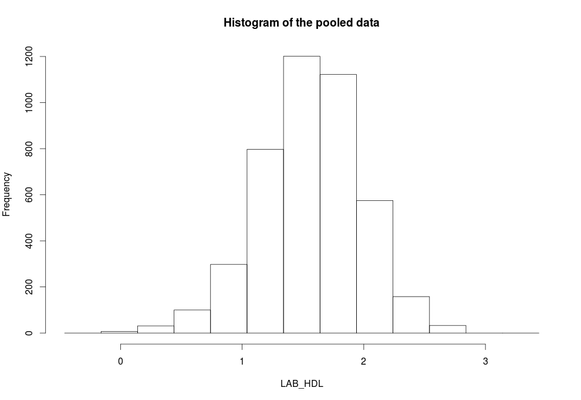
- The
ds.histogramfunction can be used to create a histogram ofLAB_HDLthat is in the assigned variable dataframe (namedD, by default). The default analysis is set to run on pooled data from all studies:
ds.histogram(x='D$LAB_HDL')
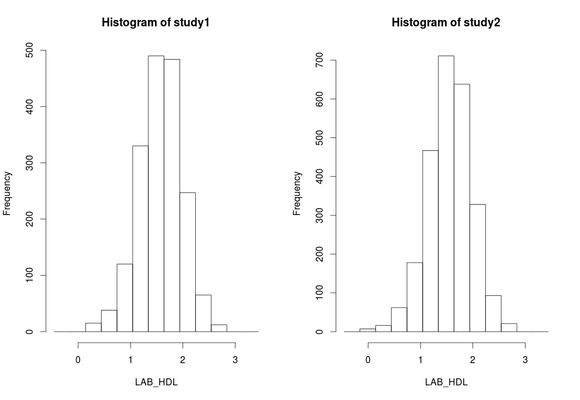
- To produce histograms from each study, the argument
type='split'is used. Note that some study 1 and study 2 contain 1 invalid category (bin) respectively - they contain counts less than the data provider minimal cell count:
ds.histogram(x='D$LAB_HDL', type='split')
#Warning: study1: 1 invalid cells
#Warning: study2: 1 invalid cells
Contour plots
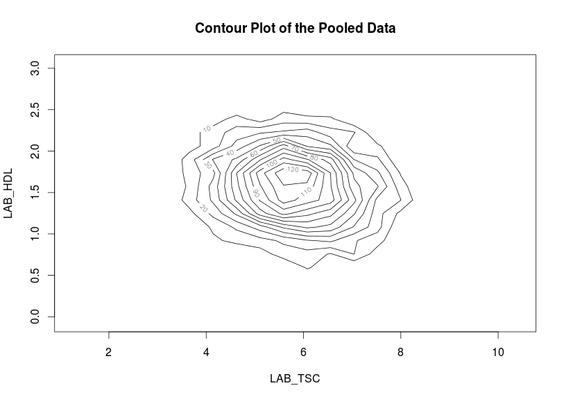
Contour plots are used to visualize a correlation pattern that would traditionally be determined using a scatter plot (which can not be used in DataSHIELD as it is potentially disclosive).
- The function
ds.contourPlotis used to visualise the correlation between the variablesLAB_TSC(total serum cholesterol andLAB_HDL(HDL cholesterol). The default istype='combined'- the results represent a contour plot on pooled data across all studies:
ds.contourPlot(x='D$LAB_TSC', y='D$LAB_HDL')
#study1: Number of invalid cells (cells with counts >0 and <5) is 83
#study2: Number of invalid cells (cells with counts >0 and <5) is 97
Heat map plots
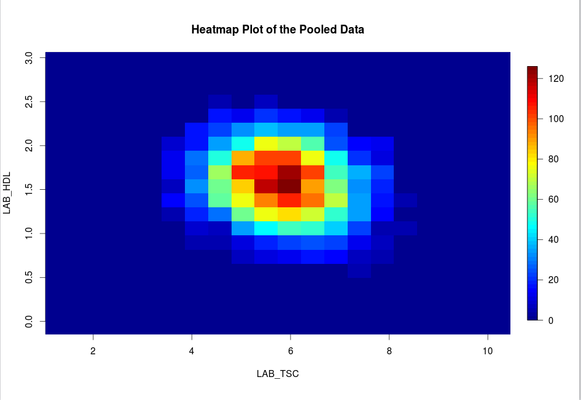
An alternative way to visualise correlation between variables is via a heat map plot.
- The function
ds.heatmapPlotis applied to the variablesLAB_TSCandLAB_HDL:
ds.heatmapPlot(x='D$LAB_TSC', y='D$LAB_HDL')
#study1: Number of invalid cells (cells with counts >0 and <5) is 92
#study2: Number of invalid cells (cells with counts >0 and <5) is 93
Note: contour and heatmap plots
The functions ds.contourPlot and ds.heatmapPlot use the range (mimumum and maximum values) of the x and y vectors in the process of generating the graph. But in DataSHIELD the minimum and maximum values cannot be returned because they are potentially disclosive; hence what is actually returned for these plots is the 'obscured' minimum and maximum. As a consequence the number of invalid cells, in the grid density matrix used for the plot, reported after running the functions can change slightly from one run to another. In the above output for example the number of invalid cells are respectively 83 and 97 for study1 and study2. These figures can change if the command is ran again but we should not be alarmed by this as it does not affect the plot itself. It was a deliberate decision to ensure the real minimum and maximum values are not returned.
Sub-setting
Information: Limitations on subsetting
Sub-setting is particularly useful in statistical analyses to break down variables or tables of variables into groups for analysis. Repeated sub-setting, however, can lead to thinning of the data to individual-level records that are disclosive (e.g. the statistical mean of a single value point is the value itself). Therefore, DataSHIELD does not subset an object below the minimal cell count set by the data providers (typically this is ≤ 4 observations).
In DataSHIELD there are currently 3 functions that allow us to generate subsets data:
Sub-setting using ds.subsetByClass
- The
ds.subsetByClassfunction generates subsets for each level of acategoricalvariable. If the input is a data frame it produces a subset of that data frame for each class of each categorical variable held in the data frame. - Best practice is to state the categorical variable(s) to subset using the
variablesargument, and the name of the subset data using thesubsetsargument. - The example subsets
GENDERfrom our assigned data frameD, the subset data is namedGenderTables:
ds.subsetByClass(x = 'D', subsets = "GenderTables", variables = 'GENDER')
- The output of
ds.subsetByClassis held in alistobject stored server-side, as the subset data contain individual-level records. If no name is specified in thesubsetsargument, the default name ofsubClassesis used.
Note: subsetting categorical variables
Running ds.subsetByClass on a data frame without specifying the categorical variable in the argument variables will create a subset of all categorical variables. If the data frame holds many categorical variables the number of subsets produces might be too large - many of which may not be of interest for the analysis.
Sub-setting using ds.names
In the previous example, the
GENDER
variable in assigned data frame
D
had females coded as 0 and males coded as 1. When
GENDER
was subset using the ds.subsetByClass function, two subset tables were generated for each study dataset
one for females and one for males.
- The
ds.namesfunction obtains the names of these subset data:
ds.names('GenderTables')
#$study1
#[1] "GENDER.level_0" "GENDER.level_1"

#$study2
#[1] "GENDER.level_0" "GENDER.level_1"
Sub-setting using ds.meanByClass
The
ds.meanByClass
function generates subset tables similar to
ds.subsetByClass
but additionally calculates the mean, standard deviation and size for each subset for specific numeric variables.
- The
ds.meanByClassfunction returns the mean, standard deviation and size of the variable defined in theoutvarargument for each subset data defined in thecovarargument. - The example below shows
LAB_HDL(cholesterol) for the subset dataGENDER(females and males) the default in the function istype='combined'(pooled across all studies). To get each study separately the argumenttype='split'must be used:
ds.meanByClass(x='D', outvar='LAB_HDL', covar='GENDER')
#Generating the required subset tables (this may take couple of minutes, please do not interrupt!)
#--study1
#  GENDER...
#--study2
#  GENDER...
#LAB_HDL - Processing subset table 1 of 2...
#LAB_HDL - Processing subset table 2 of 2...
#                 D.GENDER0    D.GENDER1
#LAB_HDL(length)  "2677"       "2574"
#LAB_HDL(mean&sd) "1.51(0.44)" "1.62(0.4)"
Note: disclosure settings
The outvar argument can be a vector of several numeric variables that the size, mean and sd is calculated for. But the number of categorical variables in the argument covar is limited to 3. This, because beyond that limit continuous sub-setting may lead to tables that hold a number of observation lower than the minimum cell count set by the data providers.
Sub-setting using ds.subset
The function
ds.subset
allows general sub-setting of different data types e.g. categorical, numeric, character, data frame, matrix. It is also possible to subset rows (the individual records). No output is returned to the client screen, the generated subsets are stored in the server-side R session.
- The example below uses the function
ds.subsetto subset the assigned data frameDby rows (individual records) that have no missing values (missing values are denoted withNA) given by the argumentcompleteCases=TRUE. The output subset is namedD_without_NA:
ds.subset(x='D', subset='D_without_NA', completeCases=TRUE)
#In order to indicate that a generated subset dataframe or vector is invalid all values within it are set to NA!
note: invalid subset errors
The ds.subset function always prints an invalid message to the client screen to inform if missing values exist in a subset. An invalid message also denotes subsets that contain less than the minimum cell count determined by data providers.
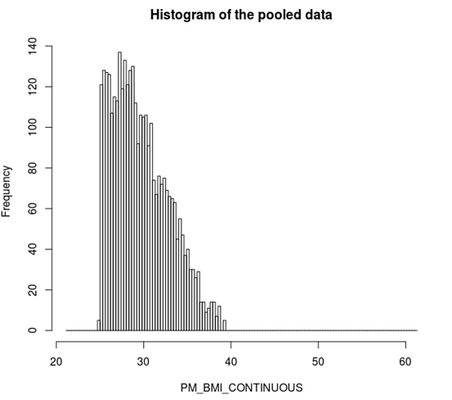
- The second example creates a subset of the assigned data frame
Dwith BMI values ≥ 25 using the argumentlogicalOperator. The subset object is namedBMI25plususing thesubsetargument and is not printed to client screen but is stored in the server-side R session:
ds.subset(x='D', subset='BMI25plus', logicalOperator='PM_BMI_CONTINUOUS>=', threshold=25)
#In order to indicate that a generated subset dataframe or vector is invalid all values within it are set to NA!
note: subsetting and column names
The subset of data retains the same variables names i.e. column names
- To verify the subset above is correct (holds only observations with BMI ≥ 25) the function
ds.quantileMeanwith the argumenttype='split'will confirm the BMI results for each study are ≥ 25.
ds.quantileMean('BMI25plus$PM_BMI_CONTINUOUS', type='split')
# $study1
#      5%     10%     25%     50%     75%     90%     95%    Mean
# 25.3500 25.7100 27.1500 29.2000 32.0600 34.6560 36.4980 29.9019
# $study2
#       5%      10%      25%      50%      75%      90%      95%     Mean
# 25.46900 25.91800 27.19000 29.27000 32.20500 34.76200 36.24300 29.92606
- Also a histogram of the variable BMI of the new subset data frame could be created for each study separately:
ds.histogram('BMI25plus$PM_BMI_CONTINUOUS')
Modelling
Horizontal DataSHIELD allows the fitting of:
In GLM function the outcome can be modelled as continuous, or categorical (binomial or discrete). The error to use in the model can follow a range of distribution including gaussian, binomial, Gamma and poisson. In this section only one example will be shown, for more examples please see the manual help page for the function.
Generalised linear models
The function
ds.glmis used to analyse the outcome variableDIS_DIAB(diabetes status) and the covariatesPM_BMI_CONTINUOUS(continuous BMI),LAB_HDL(HDL cholesterol) andGENDER(gender), with an interaction between the latter two. In R this model is represented asD$DIS_DIAB ~ D$PM_BMI_CONTINUOUS+D$LAB_HDL*D$GENDER
By default intermediate results are not printed to the client screen. It is possible to display the intermediate results, to show the coefficients after each iteration, by using the argument
display=TRUE.
ds.glm(formula=D$DIS_DIAB~D$PM_BMI_CONTINUOUS+D$LAB_HDL*D$GENDER, family='binomial')
#Iteration 1...
#CURRENT DEVIANCE:      5772.52971970323
#Iteration 2...
#CURRENT DEVIANCE:      1316.4695853419
#Iteration 3...
#CURRENT DEVIANCE:      725.530885478789
#Iteration 4...
#CURRENT DEVIANCE:      574.040916492609
#Iteration 5...
#CURRENT DEVIANCE:      539.364843636719
#Iteration 6...
#CURRENT DEVIANCE:      534.529367269196
#Iteration 7...
#CURRENT DEVIANCE:      534.369349024873
#Iteration 8...
#CURRENT DEVIANCE:      534.369101005548
#Iteration 9...
#CURRENT DEVIANCE:      534.369101004808
#SUMMARY OF MODEL STATE after iteration 9
#Current deviance 534.369101004808 on 4159 degrees of freedom
#Convergence criterion TRUE (1.38346480863211e-12)
#beta: -6.90641416691308 0.142256253558181 -0.96744073975236 -1.40945273343361 0.646007073975006
#Information matrix overall:
#                  (Intercept) PM_BMI_CONTINUOUS    LAB_HDL   GENDER1
#(Intercept)          52.47803         1624.8945   71.78440  16.77192
#PM_BMI_CONTINUOUS  1624.89450        51515.6450 2204.90085 503.20484
#LAB_HDL              71.78440         2204.9008  109.48855  25.91140
#GENDER1              16.77192          503.2048   25.91140  16.77192
#LAB_HDL:GENDER1      25.91140          774.1803   42.87626  25.91140
#                  LAB_HDL:GENDER1
#(Intercept)              25.91140
#PM_BMI_CONTINUOUS       774.18028
#LAB_HDL                  42.87626
#GENDER1                  25.91140
#LAB_HDL:GENDER1          42.87626
#Score vector overall:
#                           [,1]
#(Intercept)       -3.610710e-10
#PM_BMI_CONTINUOUS -9.867819e-09
#LAB_HDL           -6.308052e-10
#GENDER1           -2.910556e-10
#LAB_HDL:GENDER1   -5.339693e-10
#Current deviance: 534.369101004808
#$formula
#[1] "D$DIS_DIAB ~ D$PM_BMI_CONTINUOUS + D$LAB_HDL * D$GENDER"
#$family
#Family: binomial
#Link function: logit
#
#$coefficients
#                    Estimate Std. Error    z-value      p-value low0.95CI.LP
#(Intercept)       -6.9064142 1.08980103 -6.3373166 2.338013e-10  -9.04238494
#PM_BMI_CONTINUOUS  0.1422563 0.02932171  4.8515676 1.224894e-06   0.08478676
#LAB_HDL           -0.9674407 0.36306348 -2.6646601 7.706618e-03  -1.67903208
#GENDER1           -1.4094527 1.06921103 -1.3182175 1.874308e-01  -3.50506784
#LAB_HDL:GENDER1    0.6460071 0.69410419  0.9307062 3.520056e-01  -0.71441214
#                  high0.95CI.LP       P_OR low0.95CI.P_OR high0.95CI.P_OR
#(Intercept)          -4.7704434 0.00100034   0.0001182744     0.008405372
#PM_BMI_CONTINUOUS     0.1997257 1.15287204   1.0884849336     1.221067831
#LAB_HDL              -0.2558494 0.38005445   0.1865544594     0.774258560
#GENDER1               0.6861624 0.24427693   0.0300447352     1.986079051
#LAB_HDL:GENDER1       2.0064263 1.90790747   0.4894797709     7.436693232
#$dev
#[1] 534.3691
#$df
#[1] 4159
#$nsubs
#[1] 4164
#$iter
#[1] 9
#attr(,"class")
#[1] "glmds"
Information: How ds.glm works
After every iteration in the glm, each study returns non disclosive summaries (a score vector and an information matrix) that are combined on the client R session. The model is fitted again with the updated beta coefficients, this iterative process continues until convergence or the maximum number of iterations is reached. The output of ds.glm returns the final pooled score vector and information along with some information about the convergence and the final pooled beta coefficients.
Tip
You have now sat our basic DataSHIELD training. Remember you can:
- get a function list for any DataSHIELD package and
- view the manual help page individual functions
- in the DataSHIELD test environment it is possible to print analyses to file (.csv, .txt, .pdf, .png)
- take a look at our FAQ page for solutions to common problems such as Changing variable class to use in a specific DataSHIELD function.
- join our DataSHIELD forum using your university email for support requests
All other DataSHIELD enquiries should go to datashield-research@bristol.ac.uk
Related content

DataSHIELD Wiki by DataSHIELD is licensed under a Creative Commons Attribution-ShareAlike 4.0 International License. Based on a work at http://www.datashield.ac.uk/wiki